
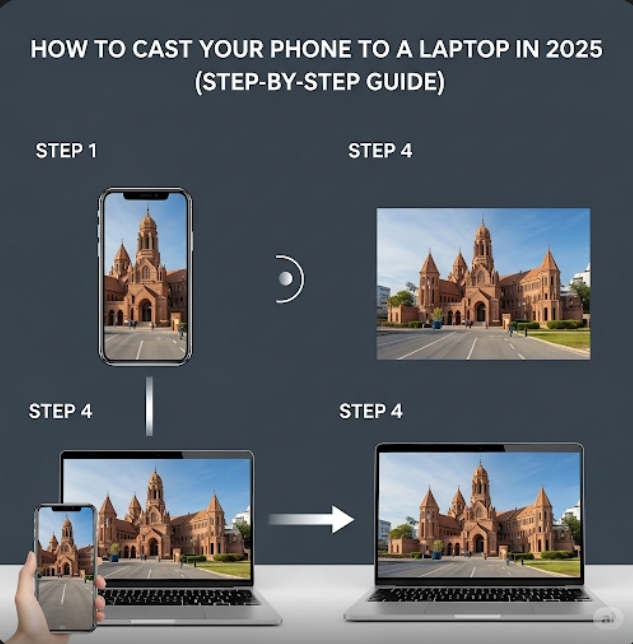
Have you ever wanted to display your phone screen on a bigger laptop screen to enjoy movies, play games, or give a presentation?
In 2025, screen casting has become easier and more seamless — whether you’re using an Android or iPhone, Windows or Mac.
In this guide, we’ll walk you through how to cast your phone to your laptop using the latest tools and technologies in 2025.
First, What Does “Casting” Mean?
Casting (also known as screen mirroring or screen sharing) is when you wirelessly display your phone screen on another device, like a laptop or TV. This allows you to:
-
Watch videos on a bigger screen
-
Show apps or documents during presentations
-
Play mobile games with keyboard/mouse support
-
Record your phone screen using your laptop
Things You Need Before Casting
Before you start, make sure you have:
-
A smartphone (Android or iPhone)
-
A laptop (Windows or macOS)
-
Wi-Fi network (Both devices must be on the same network)
-
Optional: Casting software/app (depending on the method)
How to Cast Android Phone to Windows Laptop
Method 1: Using Windows Built-in Wireless Display (Projecting to this PC)
Works best with Android 10 or later and Windows 10/11
Step-by-Step:
-
On your Windows laptop:
-
Go to Settings → System → Projecting to this PC
-
Set “Some Windows and Android devices can project” to Available Everywhere
-
Make sure your laptop is discoverable
-
-
On your Android phone:
-
Swipe down to access Quick Settings
-
Tap Smart View, Cast, or Screen Share (the name may vary)
-
Select your laptop name from the list
-
-
Accept the connection on your laptop if prompted
Your Android screen will now appear on your laptop!
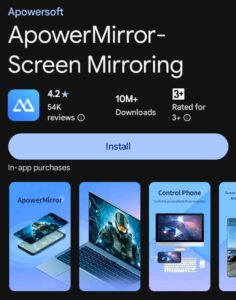
Method 2: Using Third-Party Apps (Like ApowerMirror or Vysor)
If your PC doesn’t support native casting, use apps like:
-
ApowerMirror: https://www.apowersoft.com/phone-mirror
-
Vysor: https://www.vysor.io
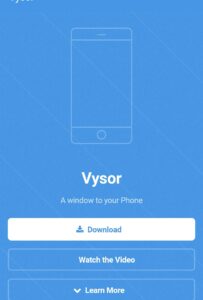
These apps let you cast with more control, and even use your mouse and keyboard.
How to Cast iPhone to Windows or Mac Laptop
iPhones use AirPlay for screen mirroring.
Step-by-Step (Using AirServer or Reflector):
-
Download a screen receiver app on your laptop:
-
AirServer: https://www.airserver.com
-
Reflector: https://www.airsquirrels.com/reflector
-
-
Connect both devices to the same Wi-Fi
-
Open the app on your laptop
-
On your iPhone:
-
Swipe down from the top-right to open Control Center
-
Tap Screen Mirroring
-
Select your laptop name
-
Your iPhone screen will now display on your laptop via AirPlay.
Cast Phone to Laptop Using a USB Cable (for High Stability)
If your Wi-Fi is weak, you can also mirror your screen using USB.
For Android:
-
Use Scrcpy (free tool)
-
Download from: https://github.com/Genymobile/scrcpy
-
Connect your phone via USB
-
Enable USB Debugging in Developer Options
-
Run scrcpy on your PC
-
For iPhone:
-
Use 3uTools (on Windows)
-
Plug in your phone and launch the screen mirroring option
Tips to Improve Casting Performance
-
Keep both devices close to the Wi-Fi router
-
Close unnecessary apps for better speed
-
Use USB if your Wi-Fi is weak or laggy
-
Turn off battery saver modes on your phone
Is It Safe to Cast Your Phone?
Yes — but only connect to trusted laptops and apps. Avoid public or unknown networks. Always keep your software updated.
Conclusion
Casting your phone to your laptop in 2025 is easier than ever. Whether you’re showing a presentation, watching a movie, or just exploring your phone on a bigger screen — wireless or USB casting can enhance your experience.
Choose the method that works best for your device, and you’ll be mirroring your phone in no time.