


If you run a business, using a professional Gmail account is a smart move. It builds trust with your customers, helps you stay organized, and makes your brand look more serious.
Whether you’re just starting out or want to separate your personal and business emails, this guide will show you exactly how to create a Gmail account for your business — using simple, clear steps anyone can follow.
🛠 Step-by-Step Guide to Create a Business Gmail Account
Step 1: Go to Google Account Sign-Up Page
1 Open your browser and visit: (https://accounts.google.com/signup)
2 You’ll see a form asking for basic details.
Step 2: Choose a Business-Friendly Username
1 Under “First name”, type your business name (or your name if it’s personal brand).

2 Under “Username”, choose something that looks professional.
Example:

`@brainstormtech.ng@gmail.com` or @temidigitalservices@gmail.com and avoid nicknames like `badtguyz4life@gmail.com` — it’s not business-friendly.
>Pro Tip: If the username you want is taken, try adding a dot or a short word like “team”, “hq”, or “official”.
Step 3: Create a Strong Password
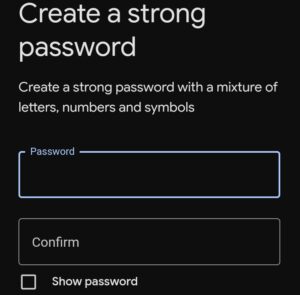
1 Use a password that combines letters, numbers, and symbols.
Example: `Brainstorm2025!`
2 Confirm the password in the next field.
Step 4: Verify Your Phone Number

1 Google will ask for your phone number to confirm you’re a real person.
2 Type in your “active mobile number” and click “Next”.
3 You’ll receive a “6-digit code” via SMS — enter it to verify.
Step 5: Add Recovery Options (Highly Recommended)
You’ll be asked to add a “recovery email” and your “date of birth”. This helps if you ever lose access to your account.
> 🔹 You can skip the recovery email, but it’s best to add one — especially for business.
Step 6: Agree to Google’s Terms
Read through (or scroll) the terms and privacy policy.
Click “I agree” to continue.
Done! You Now Have a Business Gmail Account
Once your account is created:
You can log in at (https://gmail.com)
Send professional emails from your new business address
Connect your Gmail to tools like Google Docs, Meet, Drive, and more.
Want Something Even More Professional?
If you want your Gmail to look like `info@yourbusiness.com` instead of `yourbiz@gmail.com`, consider using Google Workspace.
It’s a paid option (around \$6/month) that lets you use Gmail with a custom domain. I can guide you through that too if you’re interested.
Conclusion
Creating a Gmail account for your business takes just a few minutes, but it makes a big difference. It boosts your brand’s image, keeps your work organized, and gives customers confidence when they reach out to you. Follow the steps above, choose a clean and simple email name, and you’re good to go.
If you need help with branding, domain setup, or a custom email address like `hello@brainstorm.com.ng`, I’m here to assist.