


If you’re a teacher or course designer using Canvas LMS, you don’t have to rebuild every course from scratch.
Canvas makes it easy to reuse materials — like assignments, quizzes, modules, and files — from your previous courses.
Whether you’re teaching the same class next semester or want to pull content from another course you manage, you can bring everything over in just a few clicks.
Here’s a simple guide to show you exactly how to import content from one Canvas course to another.
Table of Contents
ToggleWhat You Can Copy Between Courses
You can bring over:
-
Modules
-
Pages
-
Assignments
-
Quizzes
-
Discussions
-
Announcements
-
Files
-
Course settings
-
Rubrics
-
Question banks
You can copy everything or just select parts — it’s totally up to you.
Step-by-Step: How to Bring Over Course Material in Canvas
🔹 Step 1: Go to the New Course
Log in to Canvas and open the course you want to copy materials into (the new/blank one).
🔹 Step 2: Open Course Settings
On the left menu, scroll down and click Settings.

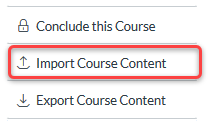
🔹 Step 3: Choose “Import Course Content”
On the right side (or bottom, depending on screen size), click the “Import Course Content” button.
🔹 Step 4: Select Content Type
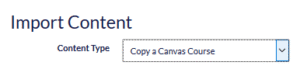
From the dropdown menu labeled “Content Type,” choose:
Copy a Canvas Course
🔹 Step 5: Search for the Course to Copy From
Start typing the name of the old course in the Search for a course box.

Canvas will show matching courses you’ve taught or have access to.
🔒 Note: You must be a teacher in both courses to copy content between them.
🔹Step 6: Choose What to Import
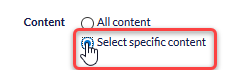
You now have two choices:
-
All content – Brings everything over
-
Select specific content – Lets you pick certain modules, quizzes, or files only
🔹Step 7: Adjust Events and Due Dates (Optional)
You can also:
-
Shift due dates to match your new term
-
Remove all dates to set them manually later
🔹 Step 8: Click “Import”

Canvas will begin importing the materials.
You’ll see a progress bar under “Current Jobs”. Wait a few moments for the process to complete.
If You Chose “Select Specific Content”
Once you click Import, Canvas will show a “Select Content” button.
Click it and check the boxes next to:
-
Specific modules
-
Assignments
-
Quizzes
-
Files
… then click “Select Content” to finalize the import.

Tips for a Smooth Import
-
Large courses may take a few minutes to process.
-
Always double-check dates after importing.
-
Clean up unused files or duplicate items after import.
-
Make sure links inside pages still work — especially if copied from another term.

Conclusion
Copying content from one Canvas course to another is simple and saves you tons of time.
Just follow these steps:
-
Go to the new course
-
Open Settings → Import Course Content
-
Select Copy a Canvas Course
-
Choose what to import
-
Click Import, review, and adjust
Whether you’re preparing for a new semester or organizing multiple sections, this feature keeps your teaching efficient and consistent.
Thank you for reading.