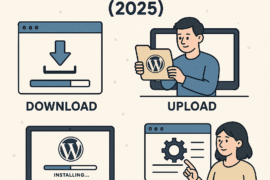


So, you’ve just installed WordPress — now what?
Whether you’re starting a blog, business website, portfolio, or online store, setting up your WordPress site the right way is key to making a great first impression and achieving your goals.
This full guide will walk you through exactly what to do after installing WordPress — step by step, no fluff, no jargon.

Table of Contents
ToggleStep 1: Log into Your WordPress Dashboard
Your WordPress dashboard is where the magic happens.
-
Visit: yourdomain.com/wp-admin
-
Log in with the username and password you created during installation
Once you’re in, you’ll see the dashboard — the backend of your website.
Step 2: Choose and Install a WordPress Theme
A theme controls your website’s design and layout. You can always change it later.
To install a theme:
-
In your dashboard, go to Appearance > Themes
-
Click Add New
-
Browse or search for free themes (like Astra, Neve, OceanWP, or Hello Elementor)
-
Click Install and then Activate
Optional:
Step 3: Install Essential Plugins
Plugins extend your site’s functionality — like apps for your website.
Must-have plugins for beginners:
How to install plugins:
-
Go to Plugins > Add New
-
Search for the plugin name
-
Click Install, then Activate
Step 4: Create Important Pages
At minimum, your website should have these core pages:
-
Home – Your main landing page
-
About – Share your story or mission
-
Contact – Let people reach out (include a form)
-
Blog – If you plan to write articles
-
Privacy Policy and Terms – Especially important for businesses
To create a page:
-
Go to Pages > Add New
-
Give your page a title and add your content
-
Click Publish
Step 5: Set Up Your Site Structure
Set a Static Homepage:
If you don’t want your blog to appear on the homepage:
-
Go to Settings > Reading
-
Choose “A static page”
-
Set your homepage and your posts page
Set Your Site Title and Tagline:
-
Go to Settings > General
-
Change your Site Title and Tagline
-
Save changes
Step 6: Customize the Menu
Make it easy for visitors to navigate your site.
-
Go to Appearance > Menus
-
Create a new menu
-
Add your key pages (Home, About, Contact, etc.)
-
Assign it to your theme’s primary menu location
Step 7: Adjust Security and Settings
Protect your site and fine-tune settings from day one.
Recommended Settings:
-
Permalinks: Go to Settings > Permalinks and choose “Post name”
-
Timezone: Set your timezone in Settings > General
-
Comments: Go to Settings > Discussion and disable or moderate comments if needed
-
Limit Login Attempts: Install a plugin like Limit Login Attempts Reloaded to block brute-force attacks
Step 8: Clean Up Default Content
WordPress installs demo content like:
-
“Hello World!” post
-
“Sample Page”
-
Default comment
To delete:
-
Go to Posts and Pages to delete them
-
Go to Comments and delete sample ones
This keeps your site clean and professional.
(Optional) Step 9: Set Up an Online Store with WooCommerce
If you plan to sell products:
-
Go to Plugins > Add New
-
Search WooCommerce
-
Install and Activate
-
Follow the setup wizard to add products, payments, shipping, etc.
Final Step: Launch Your Website!
At this point, your website is ready to go live.
Here’s a checklist before you share it with the world:
-
Logo added
-
Mobile-friendly tested
-
All major pages live
-
Social media links working
-
Backups activated
Bonus Tip:
Use a free tool like Google PageSpeed Insights to check your site speed and make improvements.
Final Thoughts
Setting up a WordPress site might seem overwhelming at first, but once you walk through each step — from picking a theme to publishing your first page — you’ll realize it’s incredibly doable, even as a beginner.
Want help picking the right plugins, setting up SEO, or securing your site? I’m here to guide you through the next steps!